AI for developers and documentation readers
Page summary:The Strapi documentation site includes free AI-powered tools including an AI toolbar, chatbot powered by Kapa,
llms.txtfiles, and MCP servers to help developers learn and integrate Strapi more effectively.
The Strapi documentation site includes AI-powered tools to help developers learn, explore, and integrate Strapi more effectively. These tools are free to use and available to everyone.
In addition to docs and product features described on the present page, the strapi/strapi and strapi/documentation repositories also have their own AGENTS.md files. Use them to guide your AI-based tools when developing Strapi features or updating documentation.
AI toolbar
Every documentation page includes an AI toolbar near the top of the page, right after the title. The toolbar provides quick access to all AI-related actions for the current page.
Clicking the dropdown arrow reveals additional options:
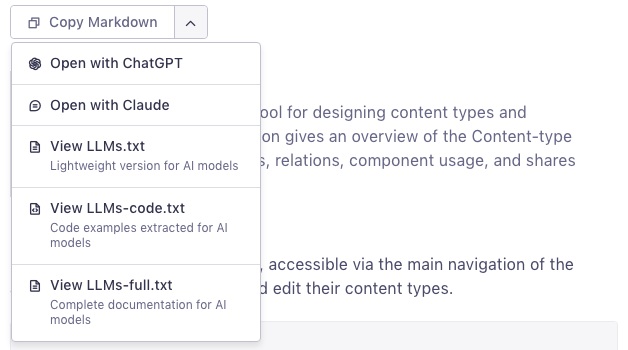
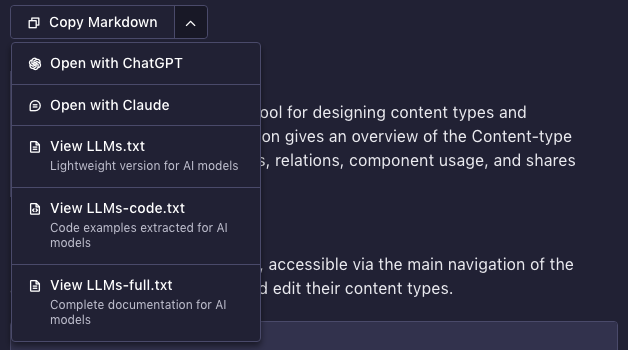
The toolbar includes the following actions:
| Action | Description |
|---|---|
| Copy Markdown | Copies the clean Markdown version of the current page to your clipboard. Available in Elegant and AI modes; in Markdown mode, use the View this page as .md button next to the toolbar instead. |
| View as Markdown | Opens the clean Markdown version of the current page in a new tab. Available in Elegant and AI modes; in Markdown mode, it is replaced by the " View this page as .md" button shown next to the toolbar. |
| Open with ChatGPT | Opens a new ChatGPT conversation prefilled with the current page URL |
| Open with Claude | Opens a new Claude conversation and copies the prompt to your clipboard |
| View LLMs.txt | Opens the lightweight page index for AI models |
| View LLMs-code.txt | Opens the code examples file for AI models |
| View LLMs-full.txt | Opens the complete documentation file for AI models |
Copy Markdown
The primary action in the toolbar. Clicking Copy Markdown fetches the clean Markdown version of the current page (the same content as the page's .md URL, with layout components resolved into plain Markdown) and copies it to your clipboard. You can then paste it into any AI assistant (ChatGPT, Claude, Gemini, etc.) for:
- Asking questions about a specific page with full context
- Summarizing or simplifying documentation content
- Generating code based on documented APIs
- Translating documentation into another language
In Markdown mode, the toolbar's Copy Markdown and View as Markdown actions are replaced by a single View this page as .md button shown next to the toolbar, which opens the same clean Markdown. You can also reach it directly by adding .md to any page URL.
Open with LLM
The Open with ChatGPT and Open with Claude buttons open a new conversation in the respective AI assistant, prefilled with a prompt that includes the current page URL. The prompt is automatically localized to your browser's language.
For Claude, the prompt is also copied to your clipboard since URL encoding works differently.
AI chatbot
An AI chatbot powered by Kapa is integrated directly into the documentation site. It draws from the full documentation, community forums, blog posts, and other Strapi resources to provide contextual answers.
Sidebar entry point
Click the Ask AI button in the left sidebar (next to the search bar) to open a conversation about anything related to Strapi.
You can ask questions like:
- "How do I create a Strapi project?"
- "How does population work in REST API?"
- "How do I customize the admin panel?"
For complex questions, enable deep thinking mode for more thorough (but slower) answers.
Code block entry point
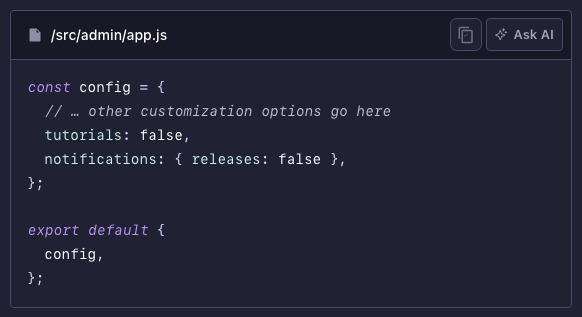
Hover over any code block on a documentation page to reveal an Ask AI button in the top-right corner of the block. Clicking it opens a conversation prefilled with the code snippet, so you can ask for an explanation or adaptation.
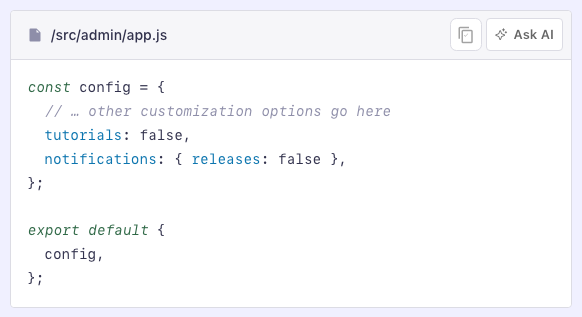
This is particularly useful for understanding configuration examples, API responses, or lifecycle hook patterns.
AI mode entry point
Every documentation page can be switched to AI mode using the mode selector at the top of the page (next to Elegant mode and Markdown mode). AI mode splits the page into two columns: the documentation content on the left, and an AI assistant panel on the right.
The panel shows an AI-generated summary of the current page and a question box, so you can read the page and ask questions about it side by side, without leaving the page or opening a separate window. Questions are answered with the same Kapa-powered chatbot, scoped to the page you are reading.
To leave AI mode, switch back to Elegant mode or Markdown mode with the mode selector, or click the in the upper-right corner of the AI panel.
LLMs text files
3 text files are available for feeding Strapi documentation content directly to LLMs. These follow the llms.txt convention and are designed for programmatic consumption by AI tools.
| File | URL | Content | Best for |
|---|---|---|---|
llms.txt | /llms.txt | Concise, link-rich overview of all pages | High-level context, navigation, RAG pipelines |
llms-full.txt | /llms-full.txt | Entire documentation in a single file | Full-site context when token limits allow |
llms-code.txt | /llms-code.txt | All code examples, grouped by page | Code-centric work, migrations, API discovery |
When to use each file
llms.txt: Use this to give an AI model an overview of what Strapi documentation covers, without consuming too many tokens. Ideal for RAG (Retrieval-Augmented Generation) systems or as a first pass before diving deeper.llms-full.txt: Use this when you need the AI to have access to the complete documentation content. This is a large file; make sure your model's context window can handle it.llms-code.txt: Use this when you're working on code and want to give an AI all of Strapi's documented code examples. Each snippet includes the source page URL and anchor for traceability.
MCP servers
The Model Context Protocol (MCP) is an open standard that lets AI tools interact with external services. 2 MCP servers are available for Strapi. Click on any of the following cards to learn more:
Strapi MCP server
Connect AI clients to your Strapi instance to manage content through natural language.
Docs MCP server
Connect the Strapi documentation to your IDE for up-to-date, reliable information.
Inki
Inki is a custom Claude Code plugin that makes contributing to the Strapi documentation easier. It bundles the skills, prompts, templates, and editorial rules the docs team uses to research where new content belongs, draft it from the right template, review it against the style guide and verify its code examples, then open a pull request. You can install it from this repository's marketplace and run the whole workflow, or any single step, from Claude Code.
If you don't use Claude Code, you can still benefit from Inki: its prompts and authoring guides are LLM-agnostic, so you can point any AI agent (Cursor, GitHub Copilot, Cline, Windsurf, and others) at the plugin's folder and reuse its prompts, templates, authoring guides, and editorial rules. Most of these live under references/, and the skill and agent definitions are readable Markdown too.