Quick Start Guide
Page summary:Build and deploy a Strapi project from scratch in 12 steps: create a local project with
create-strapi@latest, define collection types using the Content-Type Builder, push your project to GitHub and deploy to Strapi Cloud from the Cloud dashboard, and add content via the Content Manager.
Strapi offers a lot of flexibility. Whether you want to go fast and quickly see the final result, or would rather dive deeper into the product, we got you covered. For this tutorial, we'll go for the DIY approach and build a project and content structure from scratch, then deploy your project to Strapi Cloud to add data from there.
This guide is organized into collapsible steps. Click a step's title to expand or collapse it, and click the circle on the right of a step to mark it as completed once you're done. Completed steps turn green, and a progress summary at the bottom-right of the page keeps track of how far along you are.
There are 3 options to discover Strapi. Choose what best suits you:
-
Strapi offers a hosted demo so you can quickly try its Content Manager and learn how to edit content. In this hosted demo, Strapi runs in production mode, so the Content-Type Builder is disabled by design.
-
If you want to try a full-fledge application, complete with a Strapi back end, a Next.js front end, and example data, install the LaunchPad application locally.
-
If you want to learn how to start from scratch, follow the present Quick Start Guide.
Before installing Strapi, the following requirements must be installed on your computer:
- Node.js: Only Active LTS or Maintenance LTS versions are supported (currently
v22,v24, andv26). Odd-number releases of Node, known as "current" versions of Node.js, are not supported (e.g. v23, v25). - Your preferred Node.js package manager:
- Python (if using a SQLite database)
- A supported web browser: The Admin panel targets browsers matching the default Browserslist query:
last 3 major versions,Firefox ESR,last 2 Opera versions, andnot dead. See browsersl.ist for the current coverage matrix. Projects can override these defaults with a Browserslist configuration at the project root.
You will also need to install git and to have a GitHub account to deploy your project to Strapi Cloud.
Part A: Create a new project with Strapi
We will first create a new Strapi project on your machine by running a command in the terminal, and then register our first local administrator user.
Follow the steps below by clicking on the togglable content to read more instructions.
Step 1: Run the installation script and create a Strapi Cloud account
-
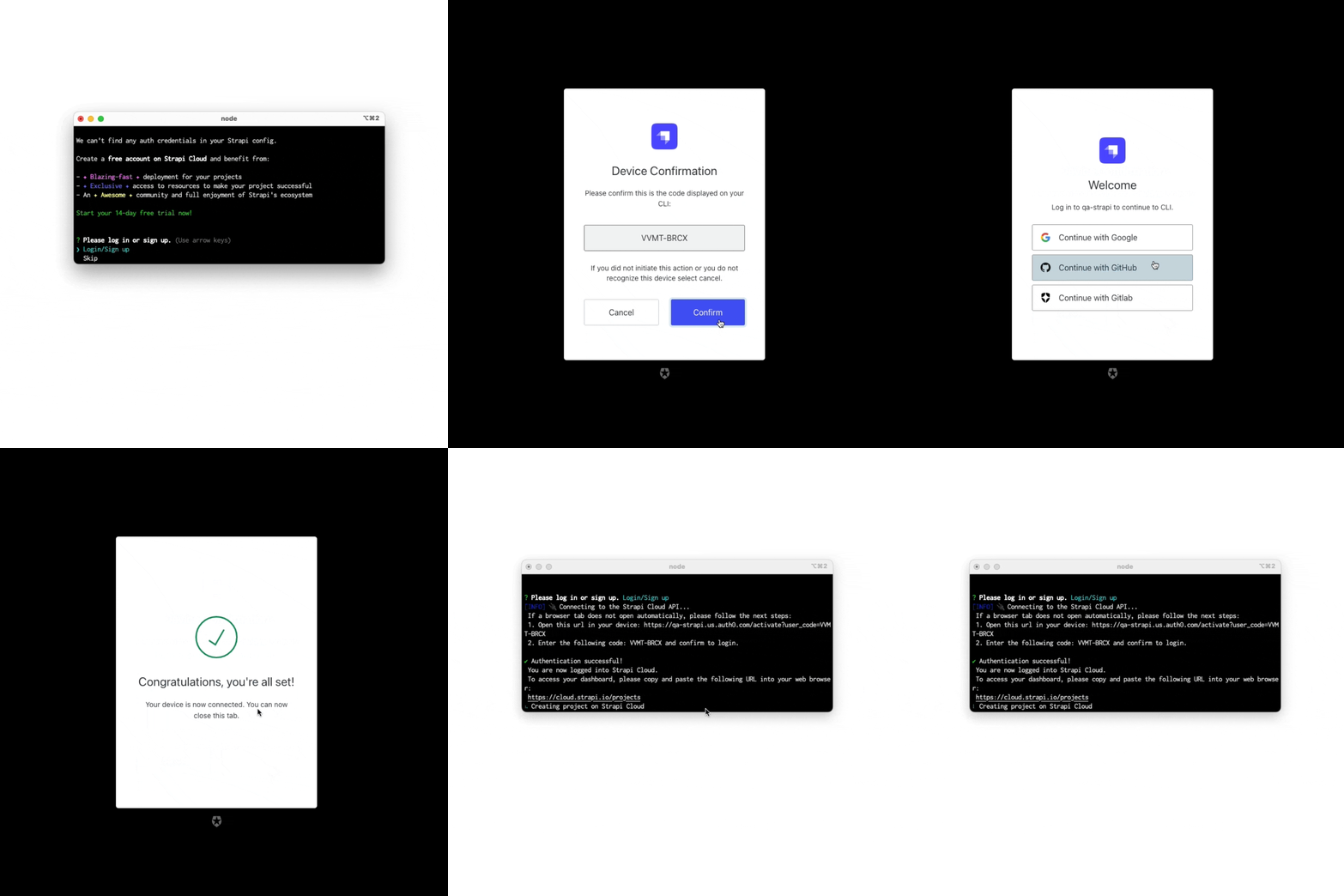
Run the following command in a terminal:
npx create-strapi@latest my-strapi-project -
The terminal will prompt you to log in or sign up. Once you do, a 30-day trial of the GrowthThe CMS Growth plan includes the Live Preview, Releases, and Content History features. plan will be automatically applied to your project. For the purpose of this tutorial, ensure
Login/Sign upis selected in the terminal, or use arrow keys to select it, and press Enter. -
In the new browser tab that opens, ensure the confirmation code is the same as in the terminal and click Confirm.
-
Still in the browser tab, click Continue with GitHub. If you are not already logged in into GitHub with your current browser session, you might be redirected to a GitHub login page.
-
Once logged in, the browser will display a "Congratulations, you're all set!" message and you can safely close the browser tab and get back to the terminal.
-
The terminal will now ask you a few questions. Press
Enterto accept the default answer to all questions.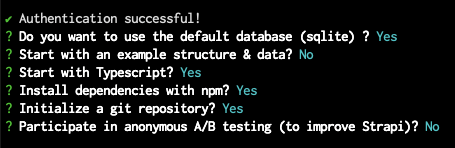
As you will see in the terminal, your project is now building locally.
- The folder of your project will include a
.strapi-cloud.jsonfile used to link the local Strapi project on your machine to the Strapi servers. - Many more installation options are available. Please refer to the installation documentation for details.
Step 2: Register the first local administrator user
Once the installation is complete, you need to start the server. In the terminal, type or copy and paste the following:
cd my-strapi-project && npm run develop
Your browser automatically opens a new tab.
As long as you stay in the my-strapi-project folder, you will just need to run npm run develop any time you want to start the Strapi server again.
By completing the form, you create your own account. Once done, you become the first administrator user of this Strapi application. Welcome aboard, commander!
You now have access to the admin panel:
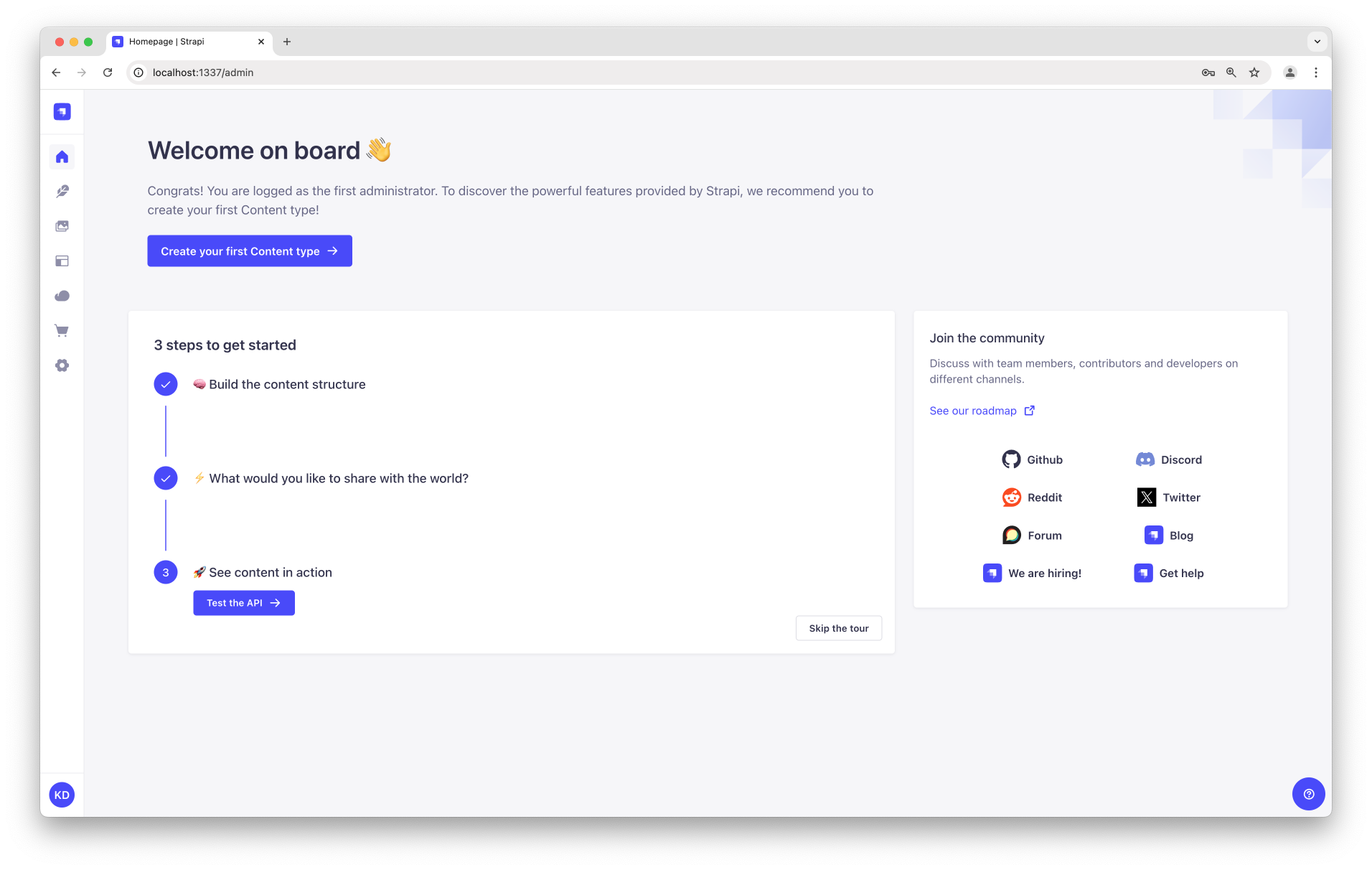
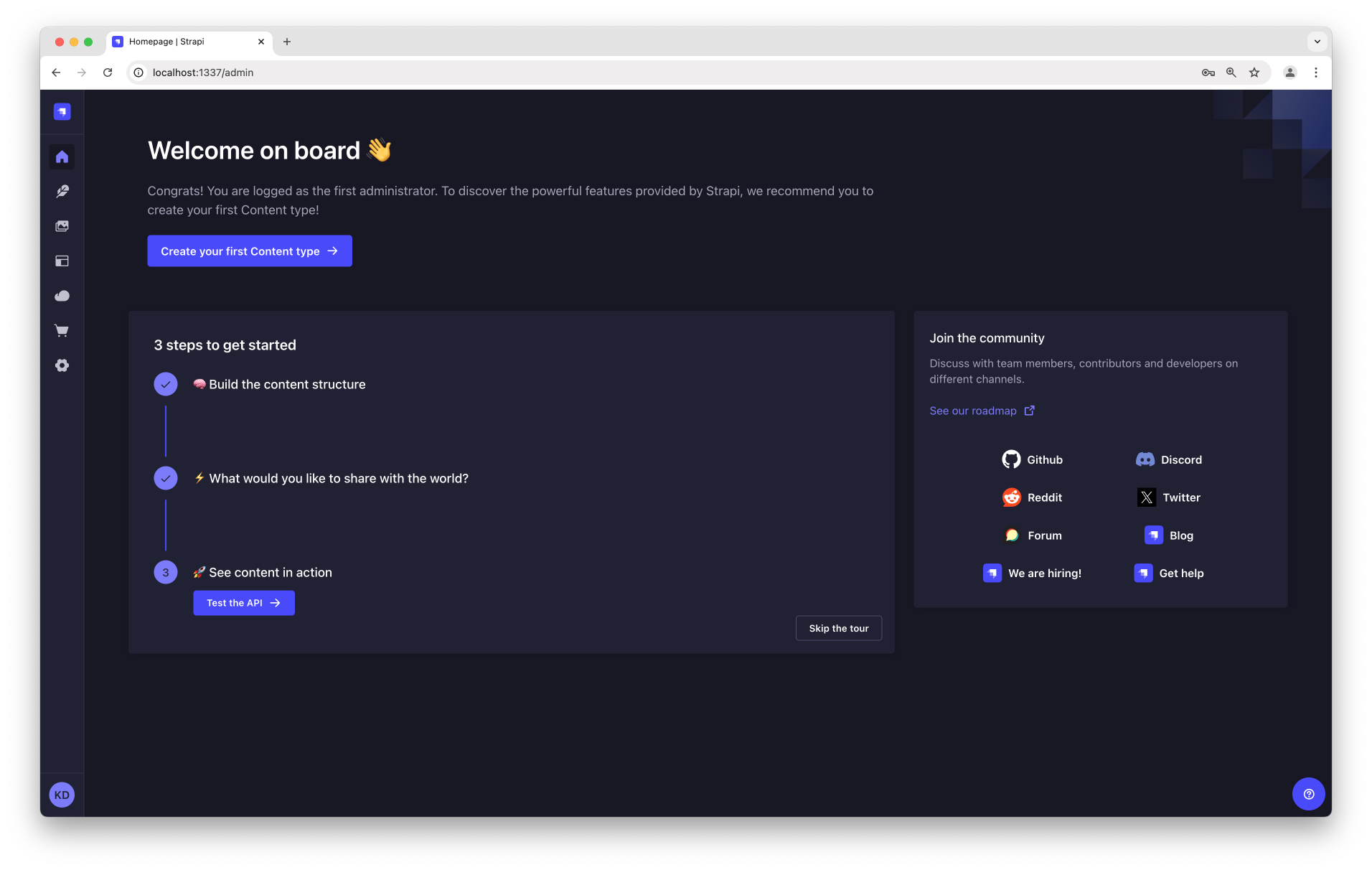
You have just created a new Strapi project! You can start playing with Strapi and discover the Content Manager by yourself, or proceed to part B below.
Part B: Build your content structure with the Content-type Builder
The installation script has just created an empty project. We will now guide you through creating a small restaurants directory.
The admin panel of a local Strapi project runs at http://localhost:1337/admin. This is where you will spend most of your time creating and updating content.
First we will build a content structure for your content. This can only be done while in development mode, which is the default mode for projects that are created locally.
If the server is not already running, in your terminal, cd into the my-strapi-project folder and run npm run develop to launch it.
You might also need to run npm run build prior to the develop command, especially in cases where building the website is important, such as for TypeScript projects for instance.
The Content-Type Builder helps you create your content structure. When creating an empty project with Strapi, this is where to get the party started!
Step 3: Create a "Restaurant" collection type
Your restaurants directory will eventually include many restaurants, so we need to create a "Restaurant" collection type. Then we can describe the fields to display when adding a new restaurant entry:
- Go to Content-Type Builder in the main navigation on the left of the admin panel.
- Click on the plus icon next to Collection types.
- Type
Restaurantfor the Display name, and click Continue. - Click on the Add new field button, and select the Text field.
- Type
Namein the Name field. - Switch to the Advanced Settings tab, and check the Required field and the Unique field settings.
- Click on Add another field.
- Choose the Rich text (Blocks) field in the list.
- Type
Descriptionunder the Name field, then click Finish. - Finally, click Save and wait for Strapi to restart.
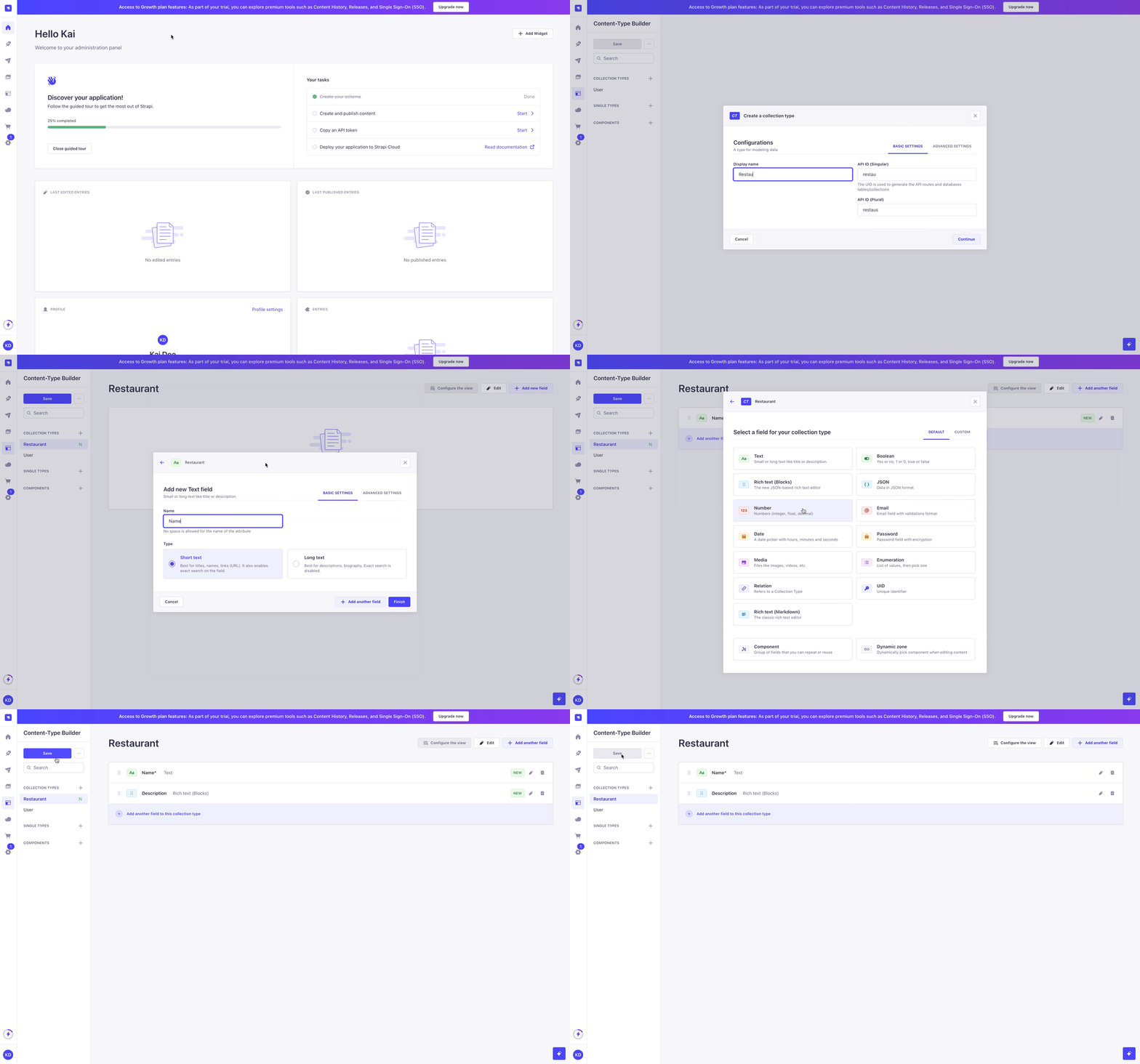
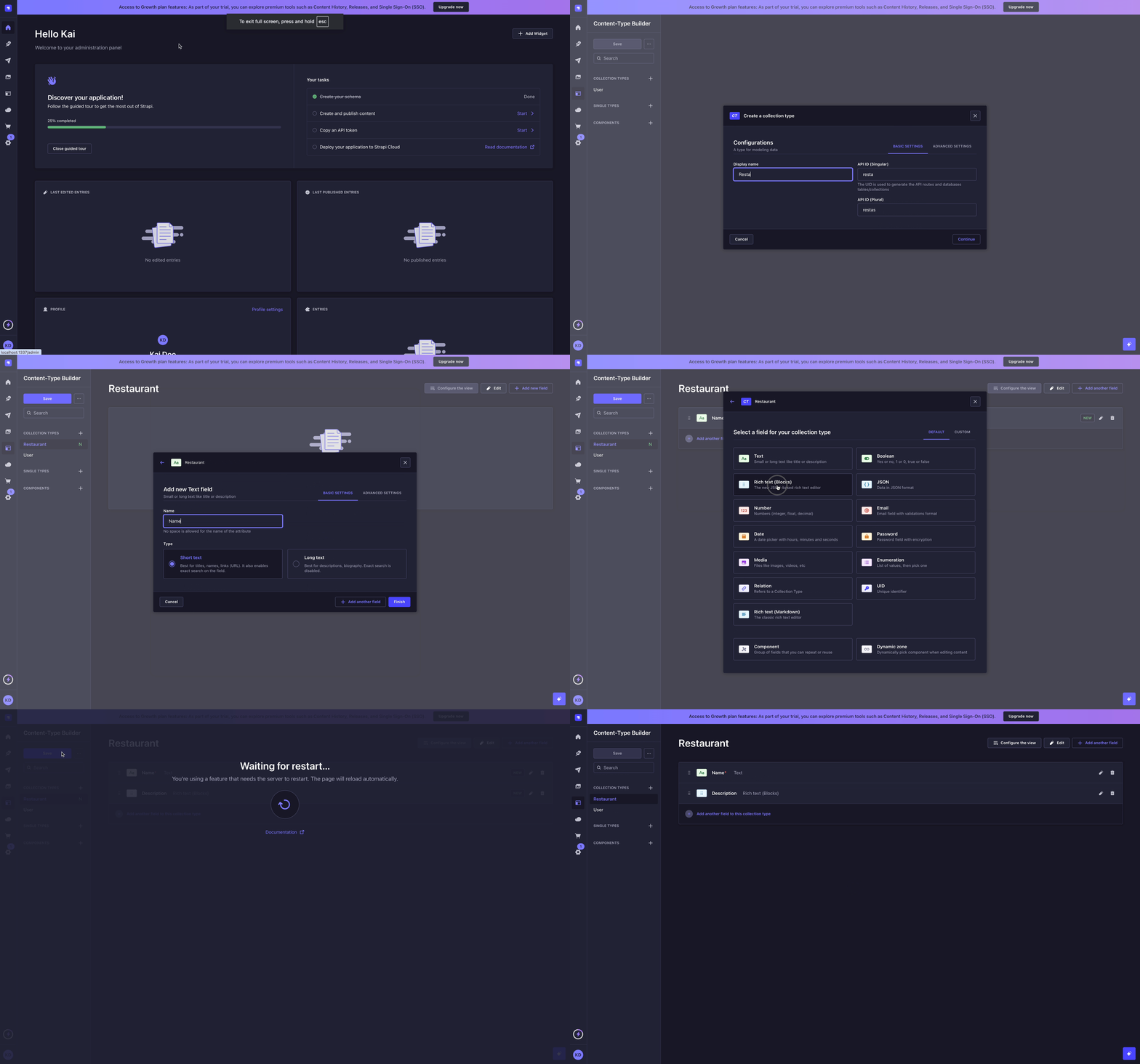
Once Strapi has restarted, "Restaurant" is listed under Content Manager > Collection types in the navigation. Wow, you have just created your very first content-type! It was so cool, let's create another one right now, just for pleasure.
Step 4: Create a "Category" collection type
It would help getting a bit more organized if our restaurants directory had some categories. Let's create a "Category" collection type:
- Go to Content-type Builder in the main navigation.
- Click on the plus icon next to Collection types.
- Type
Categoryfor the Display name, and click Continue. - Click on the Add new field button, and select the Text field.
- Type
Namein the Name field. - Switch to the Advanced Settings tab, and check the Required field and the Unique field settings.
- Click on Add another field.
- Choose the Relation field.
- In the center, select the icon that represents "many-to-many"
 .
. - On the right, click on Category dropdown and choose Restaurant in the list. The text should read
Categories has and belongs to many Restaurants.
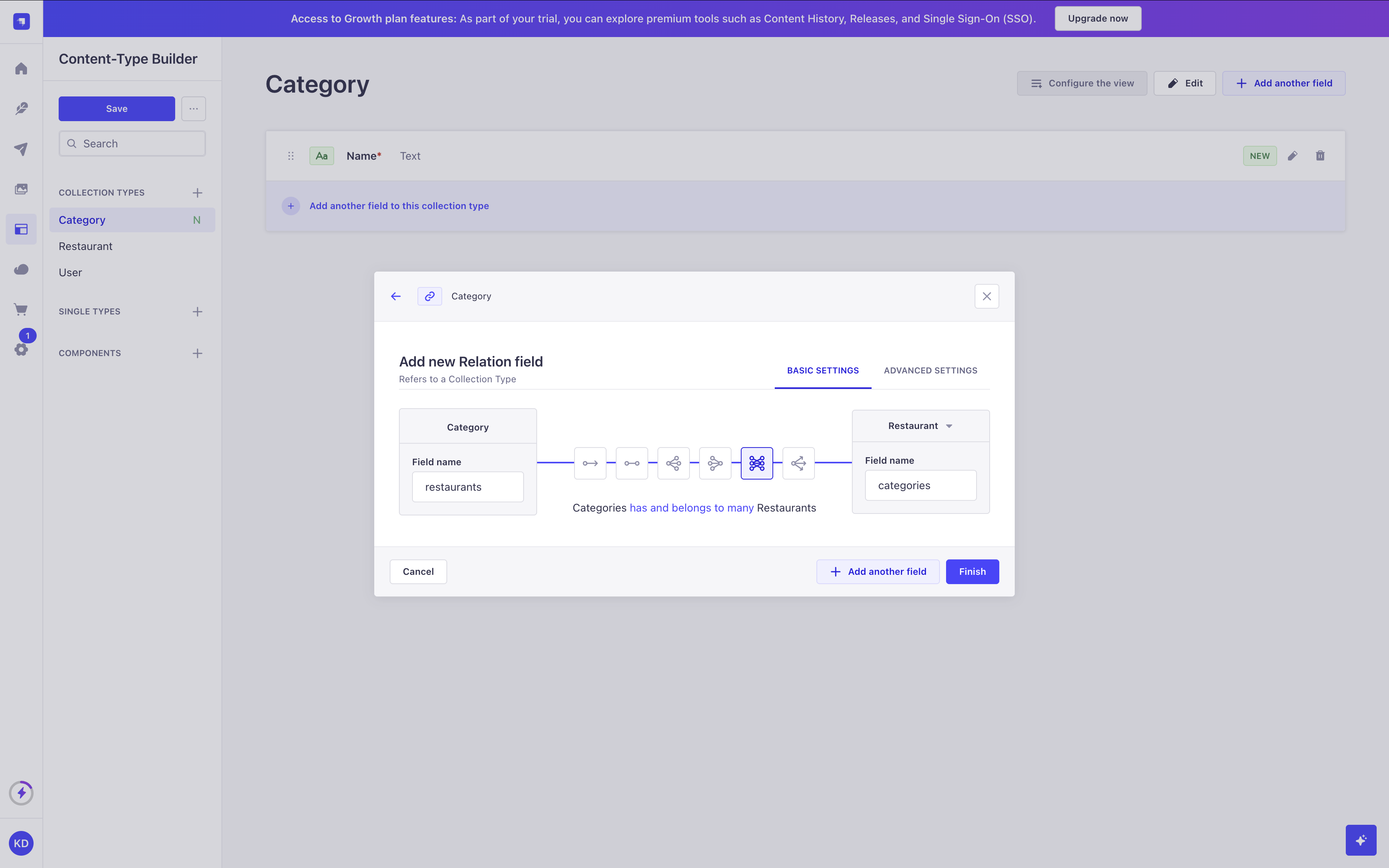
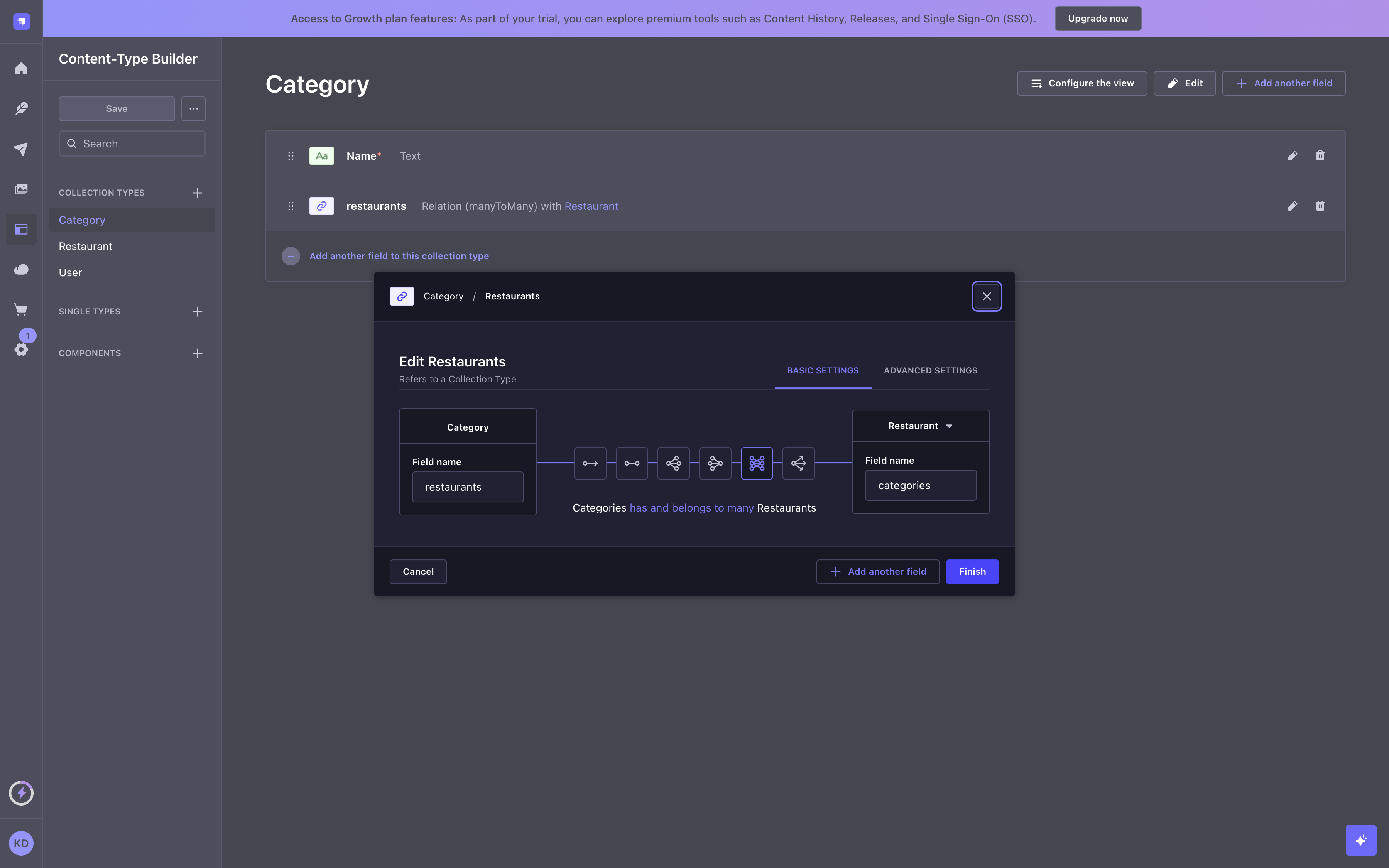
- Finally, click Finish, then the Save button, and wait for Strapi to restart.
You have just created a basic content structure for your Strapi project! You can keep on playing with the Content-Type Builder, or proceed to parts C and D below to discover Strapi Cloud and add actual content to your project.
While we showed here how to manually create a content structure, there are other options you can explore: you can import a Figma prototype, import some files from your computer, or even start prompting Strapi AI GrowthThis feature is available with a Growth plan. in natural language to let it create things for you. Feel free to try them out!
️ Part C: Deploy to Strapi Cloud
Now that your beautiful first Strapi project is working locally, it's time for the world to see it live! The most straightforward way to host your project is to use Strapi Cloud.
We recommend deploying from the Strapi Cloud dashboard. This guide walks you through pushing your local project to GitHub, then creating and deploying a Strapi Cloud project from the dashboard.
Step 5: Push your project to GitHub
If your local Strapi server is still running, press Ctrl-C to stop it.
Deploying from the dashboard requires your project to be hosted on a GitHub repository. Push your local Strapi project to GitHub like you would do it for any other code repository (see additional instructions below if needed).
Steps required to push your Strapi project code to GitHub:
- In the terminal, ensure you are in the folder that hosts the Strapi project you created.
- Run the
git initcommand to initialize git for this folder. - Run the
git add .command to add all modified files to the git index. - Run the
git commit -m "Initial commit"command to create a commit with all the added changes. - Log in to your GitHub account and create a new repository. Give the new repository a name, for instance
my-strapi-project, and remember this name. - Go back to the terminal and push your local repository to GitHub:
a. Run a command similar to the following: git remote add origin git@github.com:yourname/my-strapi-project.git, ensuring you replace yourname by your own GitHub profile name, and my-strapi-project by the actual name you used at step 5.
b. Run the git push --set-upstream origin main command to finally push the commit to your GitHub repository.
Additional information about using git with the command line interface can be found in the official GitHub documentation.
Step 6: Create and deploy your Strapi Cloud project
Now that your project is hosted on GitHub, let's create and deploy your Strapi Cloud project from the dashboard:
- Navigate to the Strapi Cloud login page and log in with GitHub, Google, GitLab, or a one-time password.
- From the Projects page, click Create project.
- Choose a plan and connect the GitHub account you just used. Select the newly created repository from the list.
- Fill in your project settings (display name, branch, region) and complete the subscription step.
- Confirm the project creation. Strapi Cloud redirects you to your project dashboard, where you can follow the first deployment.
For detailed instructions and screenshots, see the Project deployment with the Cloud dashboard guide.
Once the deployment is complete, click the Visit app button in the top right corner to access your deployed Strapi project.
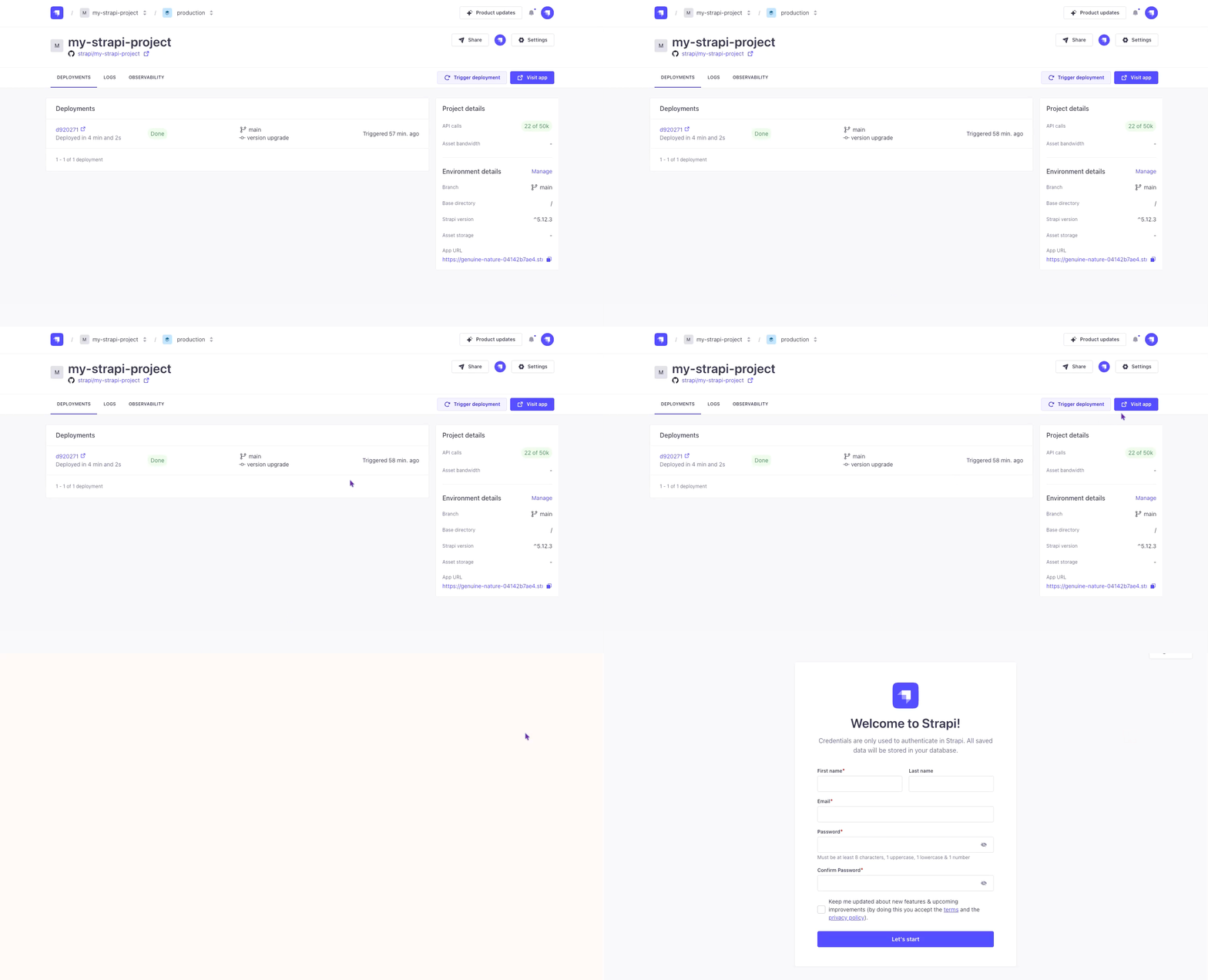
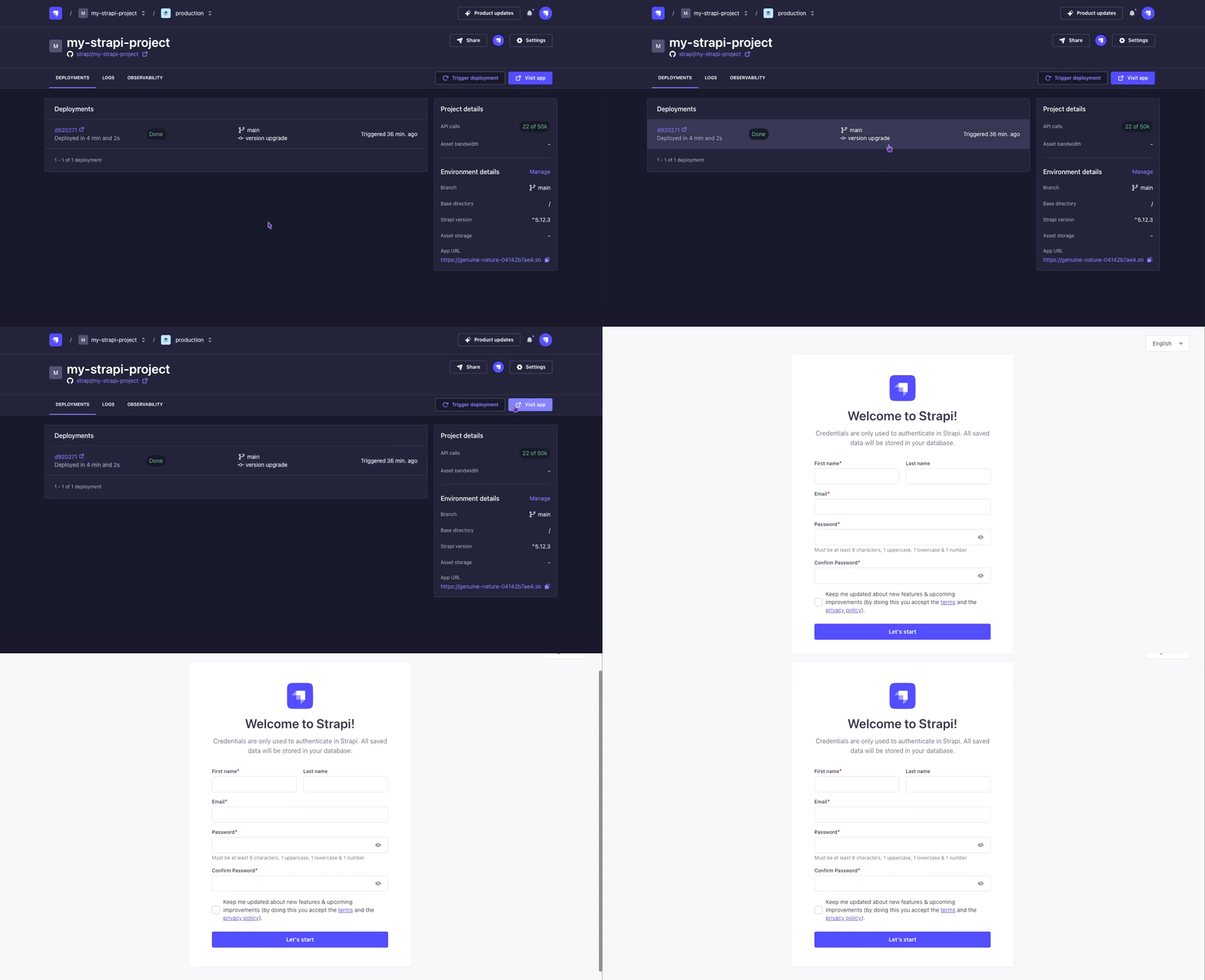
Now your project is hosted on Strapi Cloud and accessible online. You can learn more about Strapi Cloud by reading its dedicated documentation or proceed to part D to log in into your online Strapi project and add your first data from there.
Feel free to play with the Content-Type Builder even further and add more fields to your content-types or create new content-types. Anytime you make such changes, push them to GitHub to trigger a new deployment on Strapi Cloud (if you enabled Deploy on push during project creation), or trigger a deployment manually from the Cloud dashboard. You can also deploy from your terminal with the Cloud CLI.
Part D: Add content to your Strapi Cloud project with the Content Manager
Now that we have created a basic content structure with 2 collection types, "Restaurant" and "Category", and deployed your project to Strapi Cloud, let's use the Cloud to actually add content by creating new entries.
Step 7: Log in to the admin panel of your new Strapi Cloud project
Now that your Strapi Cloud project is created, let's log in into the project:
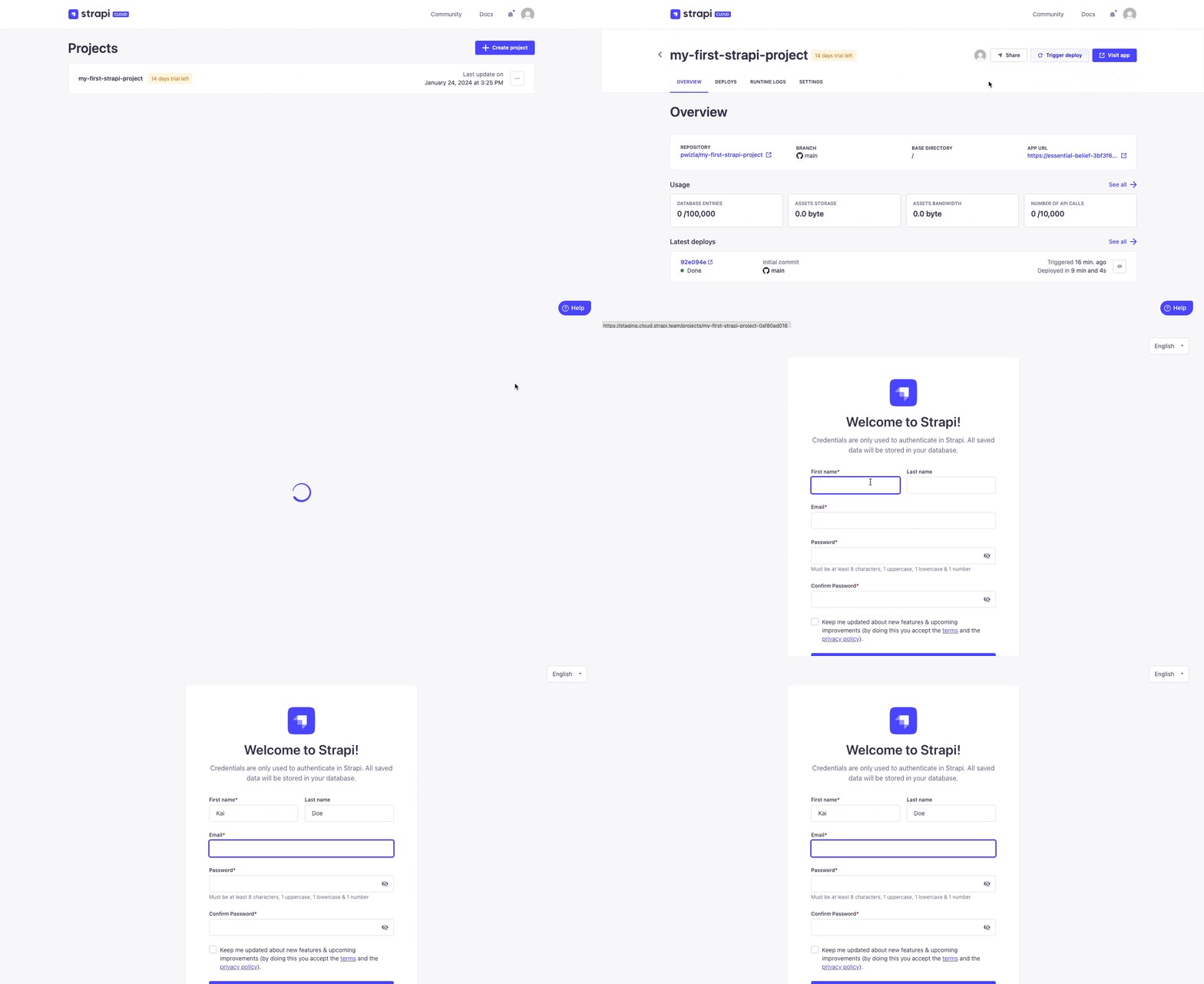
- From your Strapi Cloud dashboard, click the
my-strapi-projectproject. - Click the Visit app button.
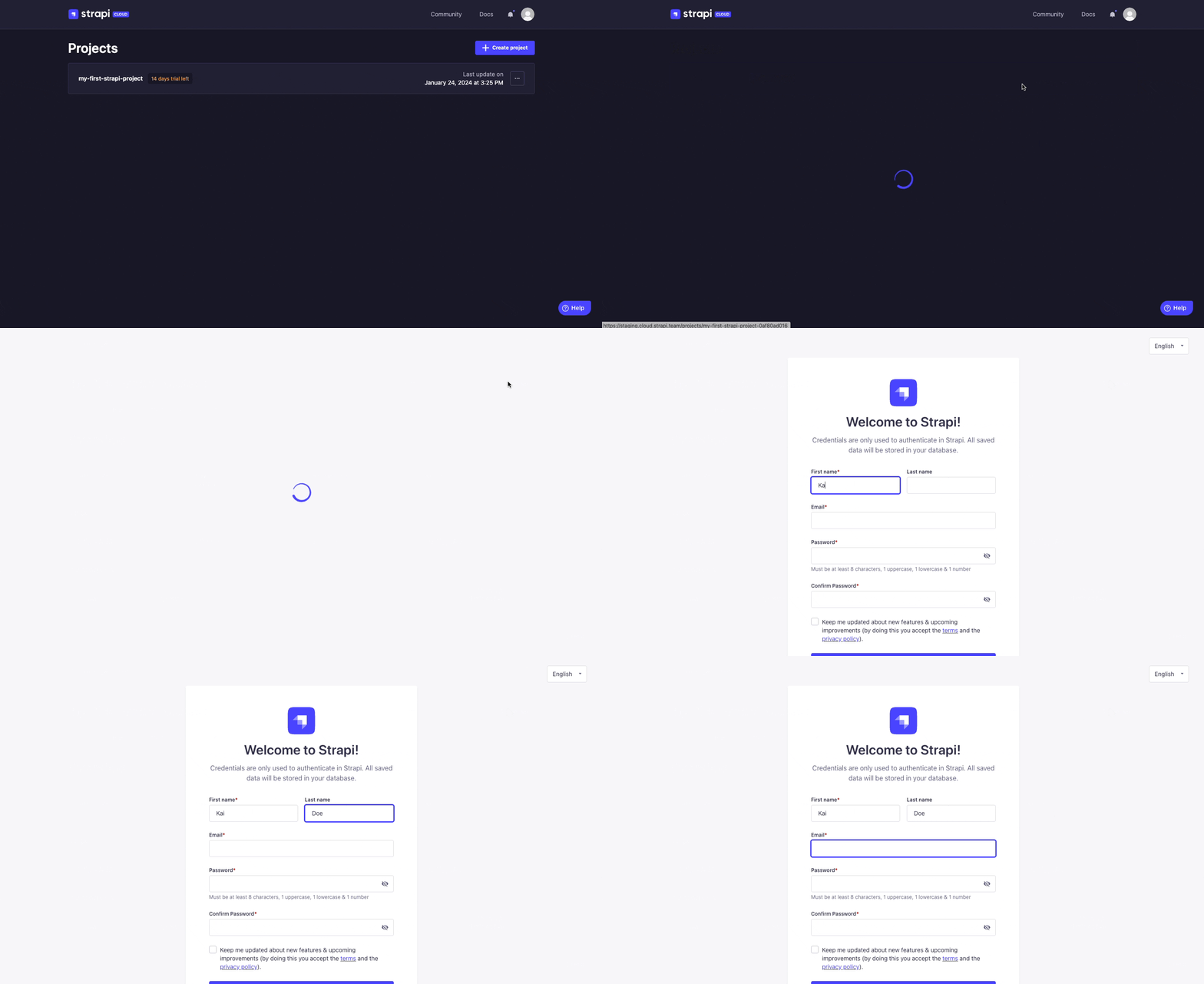
- In the new page that opens, complete the form to create the first administrator user of this Strapi Cloud project.
Logged in into our first Strapi Cloud project, we will now add data from there.
Additional information and tips about users and Strapi Cloud projects:
The databases for your Strapi Cloud project and your local project are different. This means that data is not automatically transferred from your local project to Strapi Cloud. This includes users that you previously created locally. That's why you are invited to create a new administrator account when logging in to your Strapi Cloud project for the first time.
Any project hosted on Strapi Cloud is accessible from its own URL, something like https://my-strapi-project-name.strapiapp.com. To access the admin panel of your online project, simply add /admin to the URL, for instance as in https://my-strapi-project-name.strapiapp.com/admin. URLs can be found in your Strapi Cloud dashboard and you can also directly access your Strapi Cloud projects from there by clicking on the name of your project then on the Visit app button.
Step 8: Create an entry for the "Restaurant" collection type
- Go to Content Manager > Collection types - Restaurant in the navigation.
- Click on Create new entry.
- Type the name of your favorite local restaurant in the Name field. Let's say it's
Biscotte Restaurant. - In the Description field, write a few words about it. If you're lacking some inspiration, you can use
Welcome to Biscotte restaurant! Restaurant Biscotte offers a cuisine based on fresh, quality products, often local, organic when possible, and always produced by passionate producers. - Click Save.
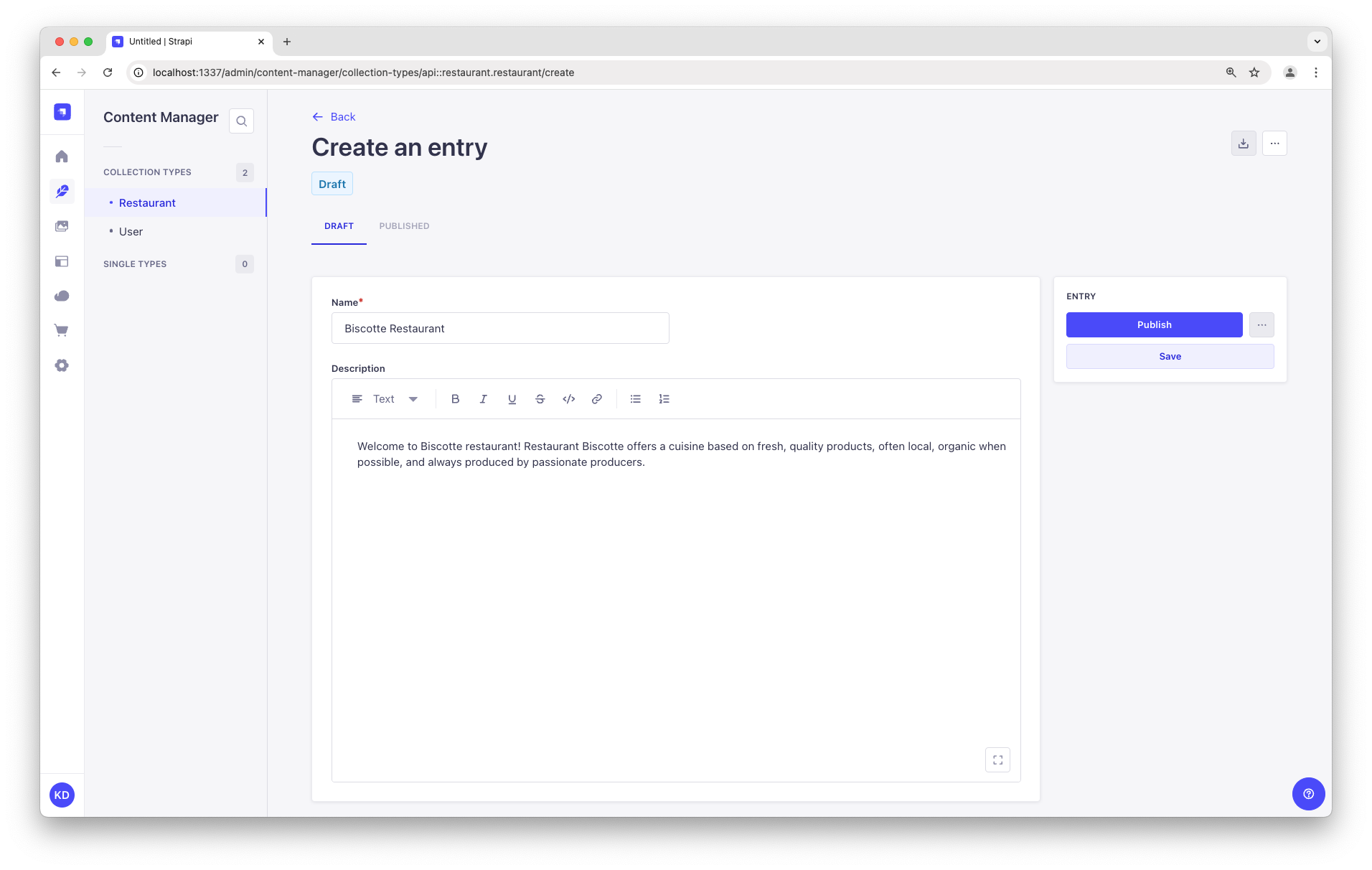
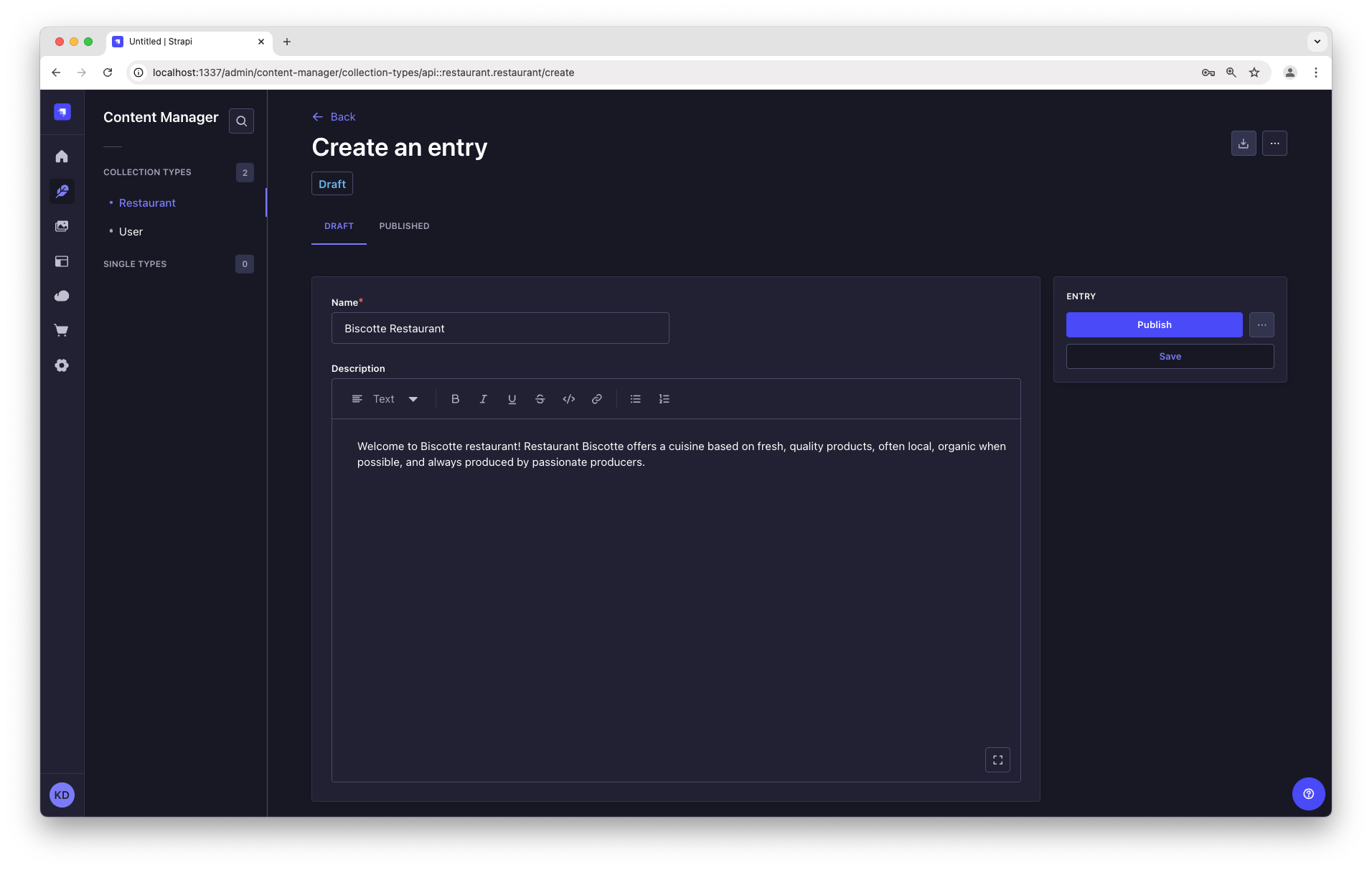
The restaurant is now listed in the Collection types - Restaurant view of the Content Manager.
Step 9: Add Categories
Let's go to Content Manager > Collection types - Category and create 2 categories:
- Click on Create new entry.
- Type
French Foodin the Name field. - Click Save.
- Go back to Collection types - Category, then click again on Create new entry.
- Type
Brunchin the Name field, then click Save.
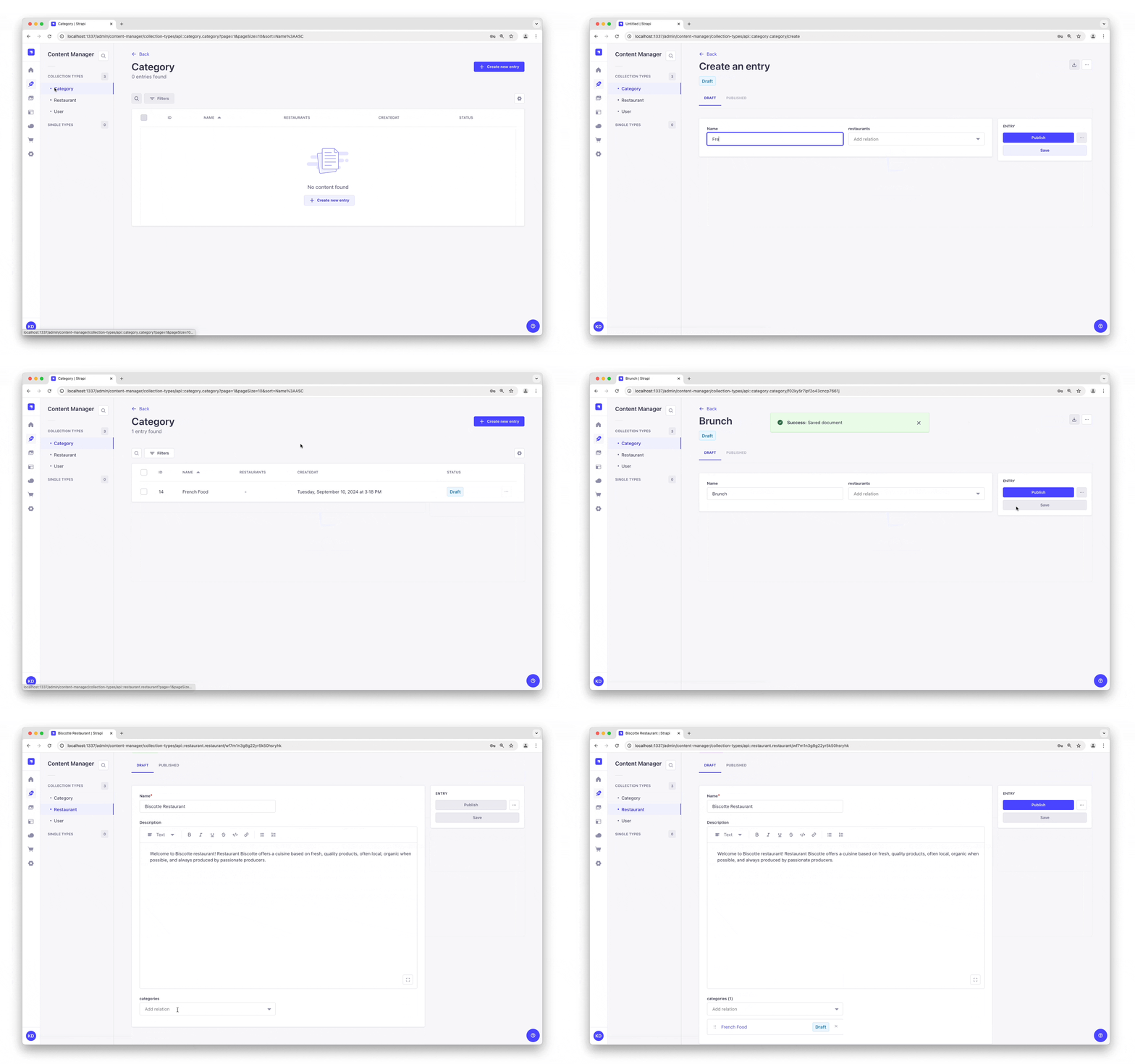
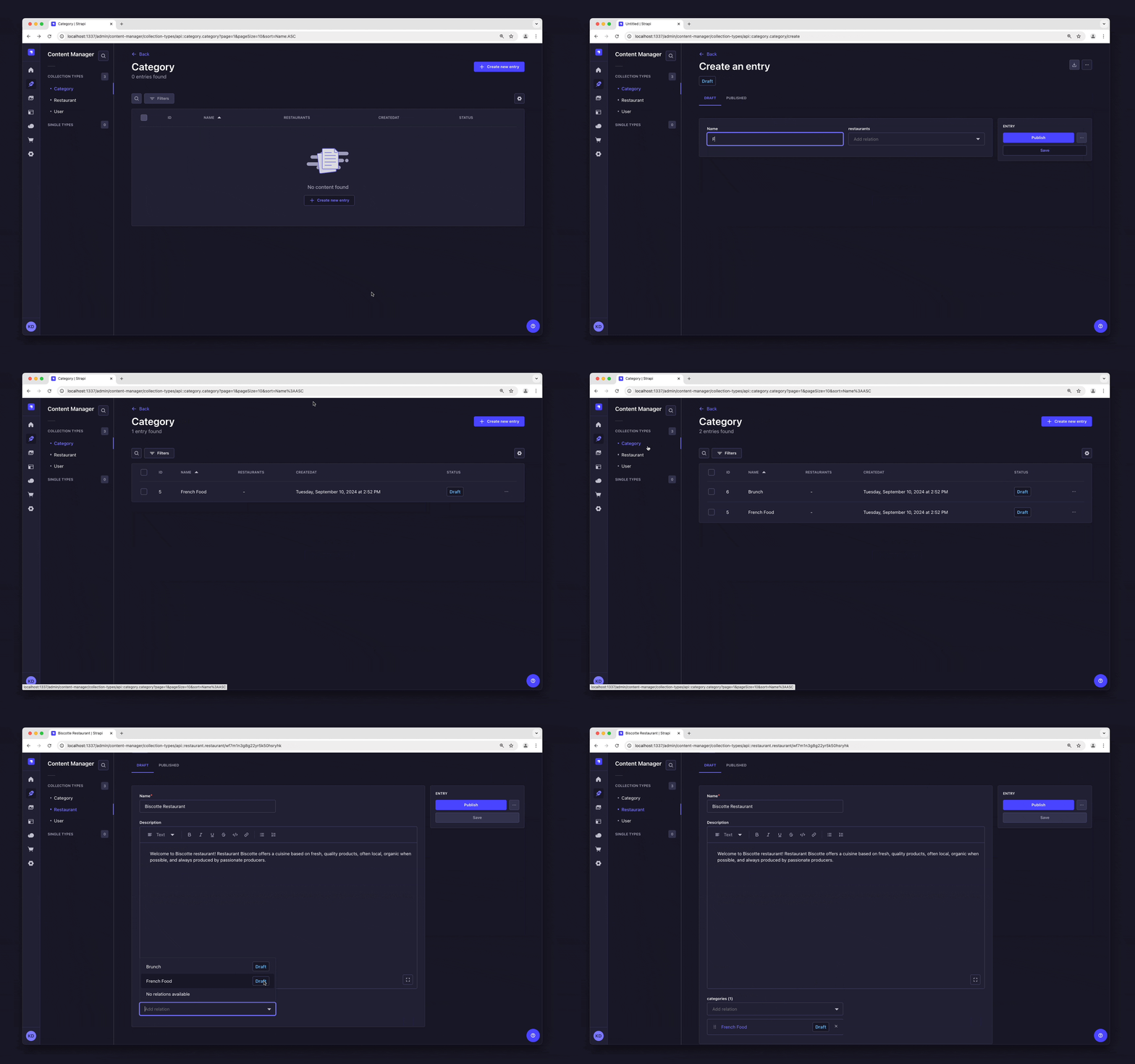
The "French Food" and "Brunch" categories are now listed as drafts in the Collection types - Category view of the Content Manager.
Now, we will add a category to a restaurant:
- Go to Content Manager > Collection types - Restaurant in the navigation, and click on "Biscotte Restaurant".
- In the Categories drop-down list at the bottom of the page, select "French Food". Scroll back to the top of the page and click Save.
Step 10: Set Roles & Permissions
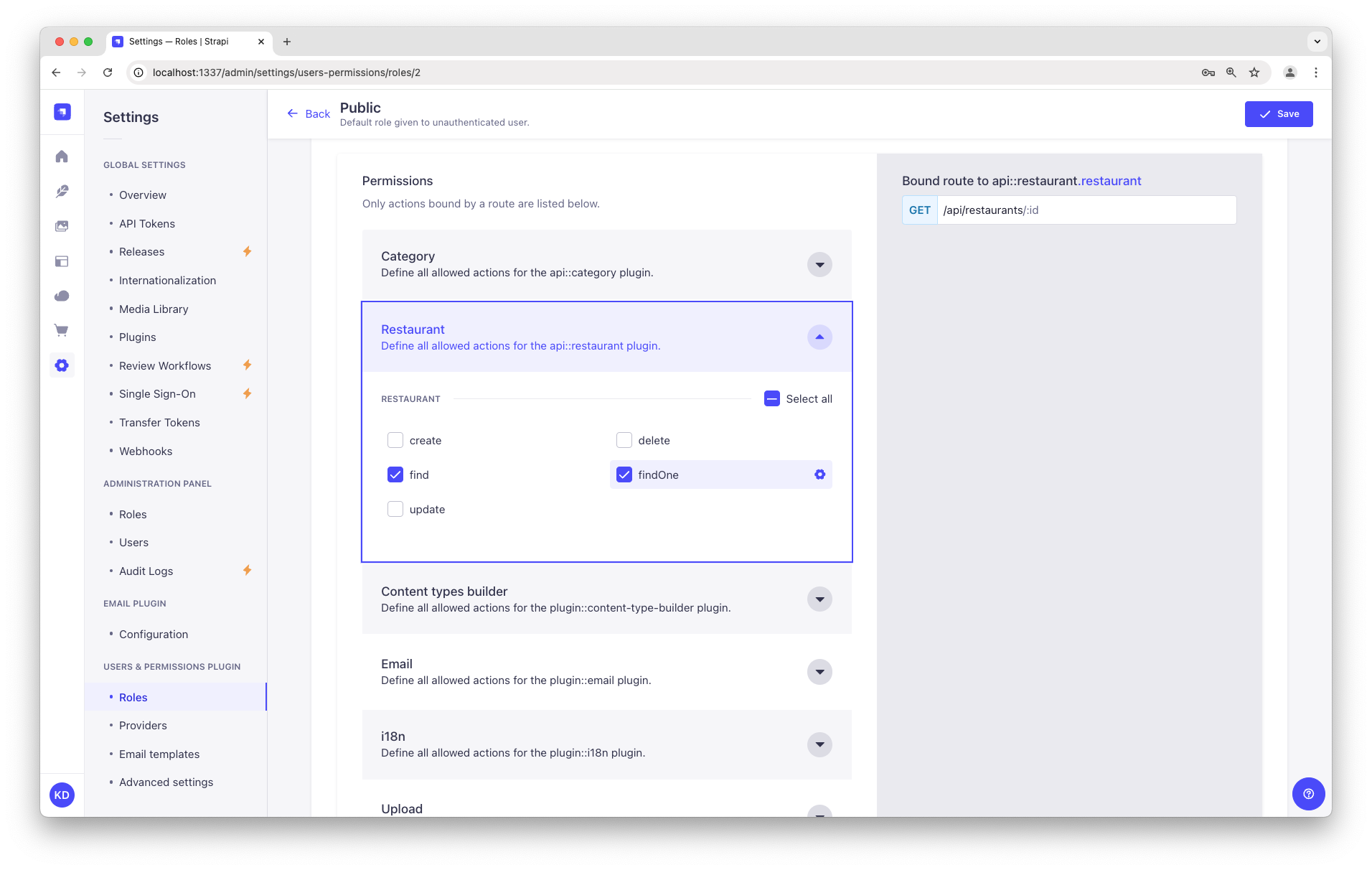
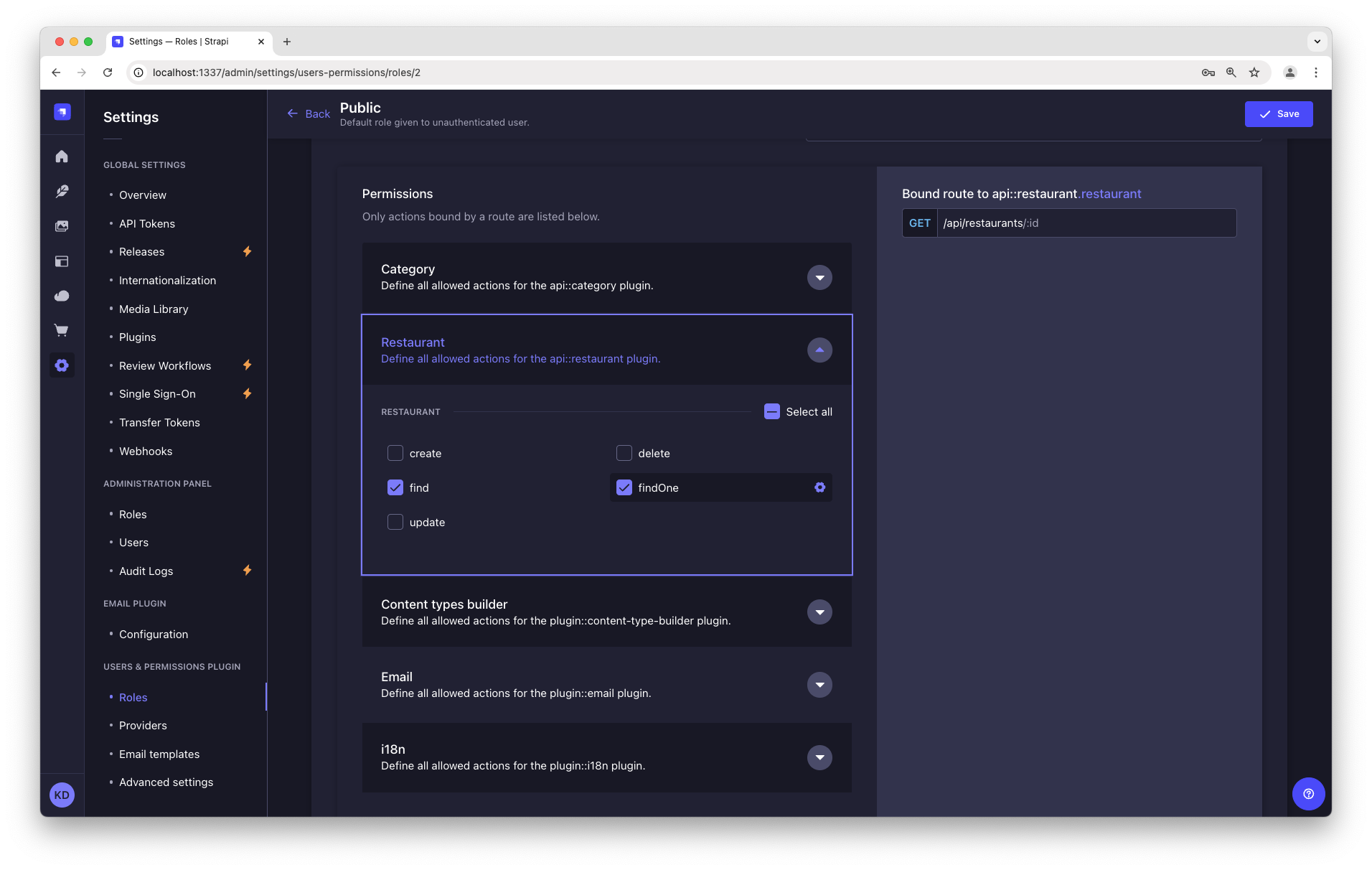
We have just added a restaurant and 2 categories. We now have enough content to consume (pun intended). But first, we need to make sure that the content is publicly accessible through the API:
- Click on Settings at the bottom of the main navigation.
- Under Users & Permissions Plugin, choose Roles.
- Click the Public role.
- Scroll down under Permissions.
- In the Permissions tab, find Restaurant and click on it.
- Click the checkboxes next to find and findOne.
- Repeat with Category: click the checkboxes next to find and findOne.
- Finally, click Save at the top of the page.
Step 11: Publish the content
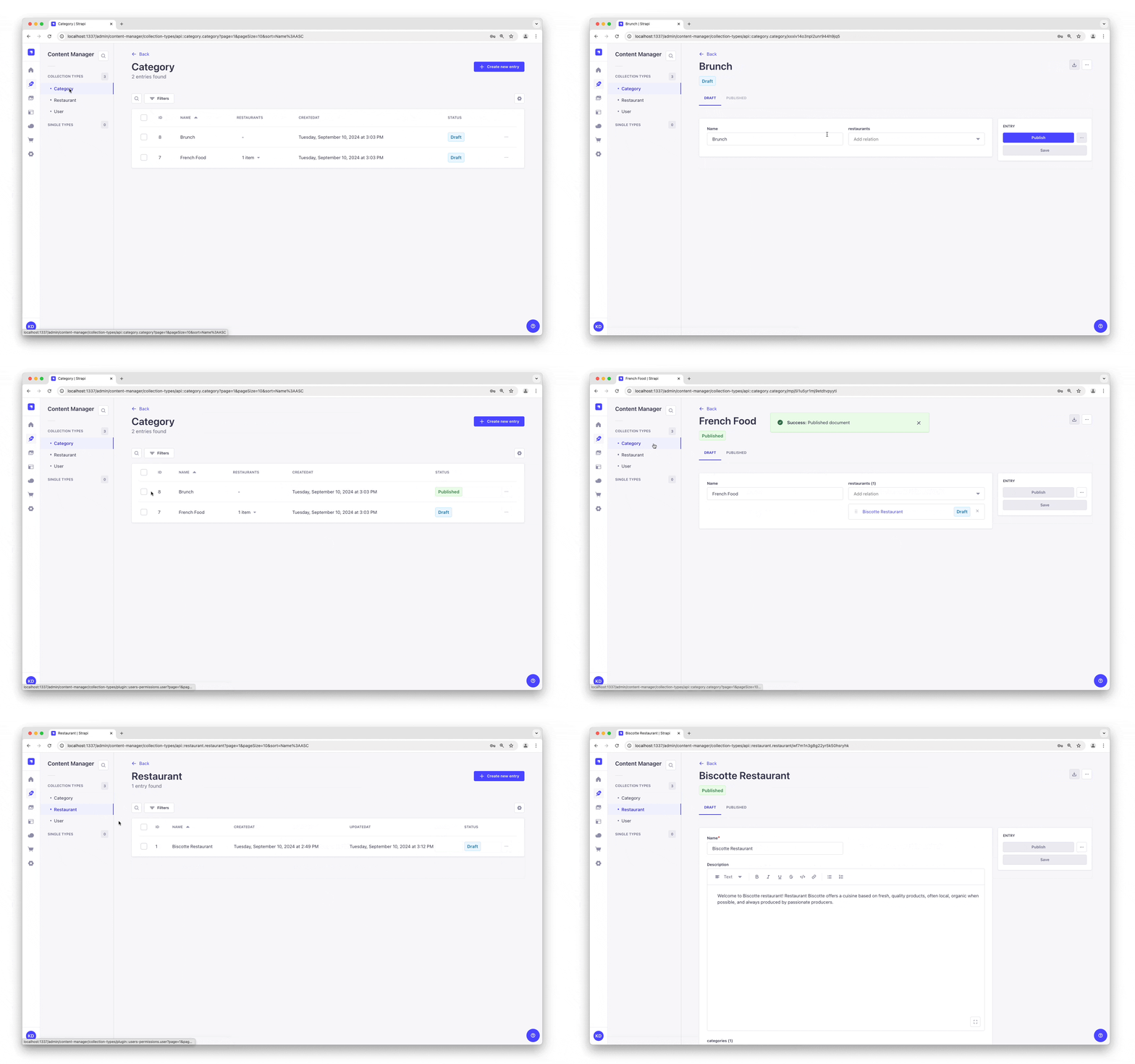
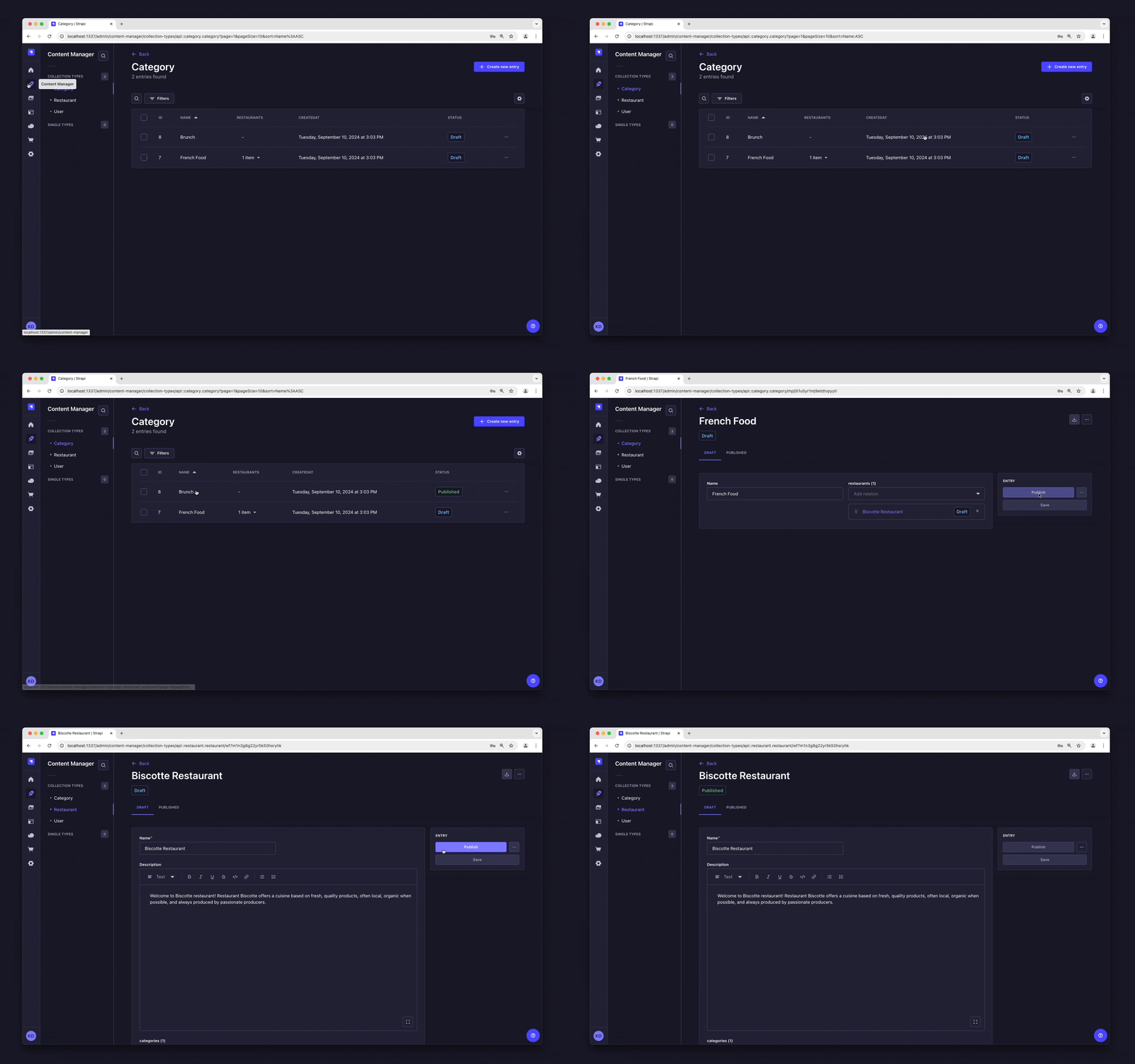
By default, any content you create is saved as a draft. Let's publish our categories and restaurant.
First, navigate to Content Manager > Collection types - Category. From there:
- Click the "Brunch" entry.
- On the next screen, click Publish.
Then, go back to the Categories list and repeat for the "French Food" category.
Finally, to publish your favorite restaurant, go to Content Manager > Collection types - Restaurant, click the "Biscotte Restaurant" entry, and Publish it.
Step 12: Use the API
OK dear gourmet, we have just finished creating our content and making it accessible through the API. You can give yourself a pat on the back — but you have yet to see the final result of your hard work.
There you are: the list of restaurants should be accessible by visting the /api/restaurants path of your Strapi Cloud project URL (e.g., https://beautiful-first-strapi-project.strapiapp.com/api/restaurants).
Try it now! The result should be similar to the example response below 👇.
Click me to view an example of API response:
{
  "data": [
    {
      "id": 3,
      "documentId": "wf7m1n3g8g22yr5k50hsryhk",
      "Name": "Biscotte Restaurant",
      "Description": [
        {
          "type": "paragraph",
          "children": [
            {
              "type": "text",
              "text": "Welcome to Biscotte restaurant! Restaurant Biscotte offers a cuisine based on fresh, quality products, often local, organic when possible, and always produced by passionate producers."
            }
          ]
        }
      ],
      "createdAt": "2024-09-10T12:49:32.350Z",
      "updatedAt": "2024-09-10T13:14:18.275Z",
      "publishedAt": "2024-09-10T13:14:18.280Z",
      "locale": null
    }
  ],
  "meta": {
    "pagination": {
      "page": 1,
      "pageSize": 25,
      "pageCount": 1,
      "total": 1
    }
  }
}
Now your content is created, published, and you have permissions to request it through the API. Keep on creating amazing content!
The databases for your Strapi Cloud project and your local project are different. This means that data is not automatically synchronized between your Strapi Cloud and local projects. You can use the data management system to transfer data between projects.